Caregiver Access
Aloha Data Collection offers the option to create a “Caregiver” role type
that allows clients’ caregivers (e.g. parents, guardians, etc) to use the platform to
view their child’s information and if desired, collect data on the child’s
treatment plan goals. Caregiver role types can be given as little or as much
access as desired. Additionally, more than one Caregiver role type can be
created to meet the various needs and preferences of the families you are
supporting.
Creating A Caregiver Role
Before a Caregiver Profile is created, a Caregiver Role must
be created first.
Create a Caregiver Role by navigating to: Organization Setup
> Settings > Roles and Permissions on the left-hand menu on the Web.
Click in the top right to add the new
Caregiver role. This will open the following new window:
in the top right to add the new
Caregiver role. This will open the following new window:
Type in the Role Name (e.g. Parent, Caregiver). If there
will be more than one different Caregiver Role Type with differing permissions,
make sure you select a name that indicates these differences (e.g. Caregiver
Data, Caregiver No Data).
Select Role Type “Caregiver” from the dropdown menu
Use the toggles to give or remove access for Web and App based on desired preferences
Modify Web and App permissions based on desired preferences.

Note: In order to streamline the Caregiver role creation process, Aloha DC has Reduced the permission options available to Caregivers (for example, the option to Edit anything is removed) based on known needs for typical Caregiver access. From here, users can further tailor a Caregiver's permissions.
Creating A Caregiver Profile
After the Caregiver Role has been created, a Caregiver
Profile can be created.
Navigate to Organization Setup > Caregiver on the
left-hand menu on the Web.
Click in the top right to add the new
Caregiver Profile. This will open the following new window:
in the top right to add the new
Caregiver Profile. This will open the following new window:
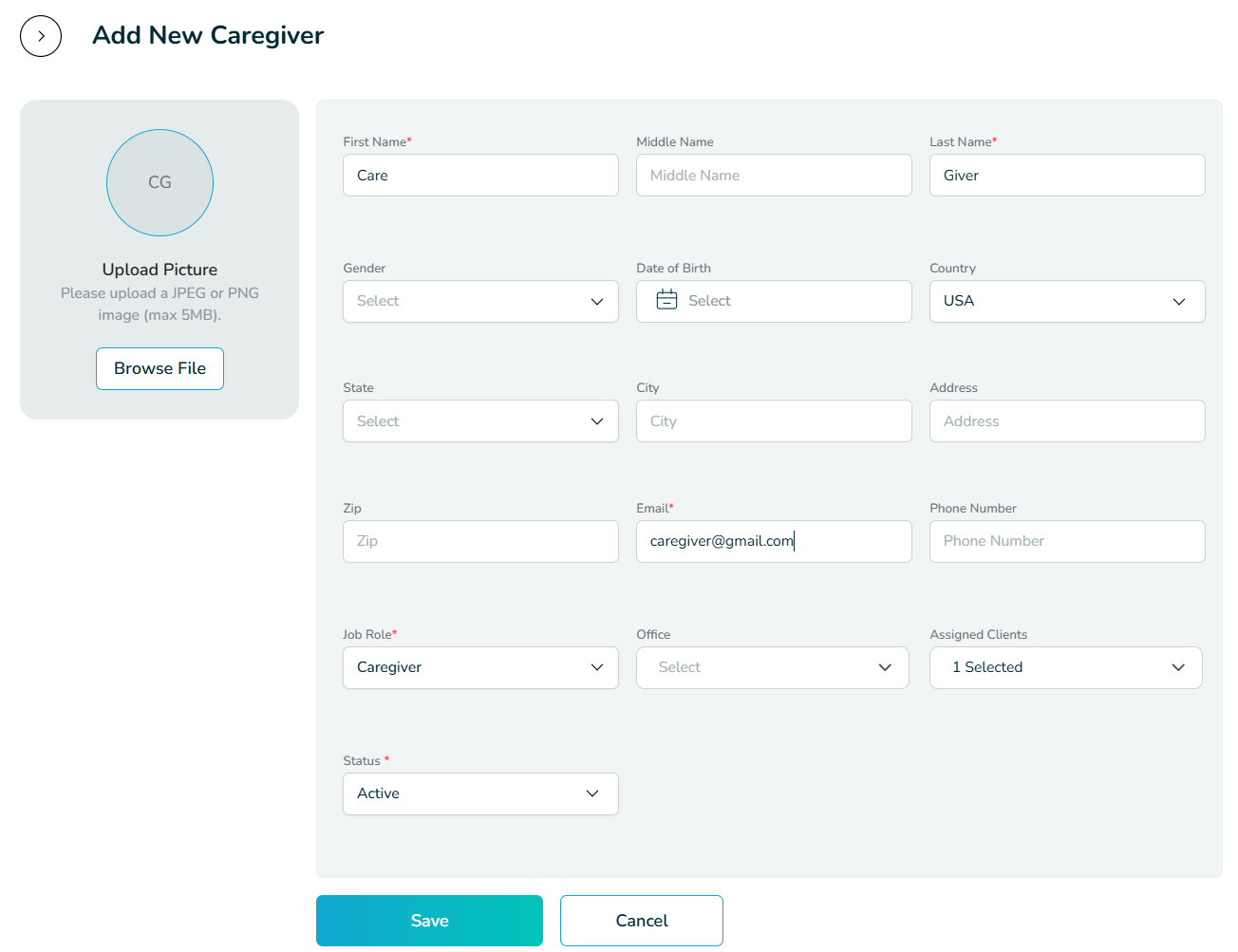
Complete all required fields and any desired optional fields.
Select the previously created Caregiver Role
from the drop down menu in the “Job Role” field. If no Caregiver role-types have been created yet, this dropdown will be empty.
Link
the caregiver to their client(s) using the “Assigned Clients” drop down menu.
When viewing the client’s profile, you will now see the
Caregiver populate as “Assigned Caregiver” in the “Assigned Caregiver” field.
Note: More than one Caregiver profile can be linked to a Client (e.g. Mother, Father, Grandparent). Caregiver profiles can also be linked to more than 1 client if needed.
Alternatively, when viewing a client profile, the “Assigned
Caregiver” field can be used to view a drop down menu of all Caregiver Profiles
that has been created. The appropriate Caregiver can then be selected.
After the Caregiver Profile has been created, the Caregiver
can be invited to create their account by clicking the “mail” icon to
the far right.
Understanding Caregiver Access and Permissions
Web Access
If desired, a Caregiver can be given access to Aloha DC Web.
When accessing the Web, caregivers will only be able to view information for
the client as assigned in their profile.
It is up to the Organization to decide what features the
Caregiver will be permitted to view if accessing the Web. Depending on family
and organizational preference, here are some features that a Caregiver may have
access to view on the Web:
- Dashboard
- Schedule
- Documents
- Client Programs
- Analytics
- Lesson Notes
If
wanting to restrict access to view certain parts of Aloha DC Web, ensure the
“View” box is unchecked for that part of the Website.
App Access
If desired, a Caregiver can be given access to the Aloha DC App. Caregivers can use the App to:
- Sign Lesson Notes
- Collect data
If a Caregiver will be collecting data using the App,
it is recommended that that the BCBA create programs specifically for
Caregivers (e.g. separate from RBT-run programs) and use the Lesson Builder
function on Welina Web to create a curated lesson of these programs for the
caregiver to run. This also helps to keep data collected by Caregivers separate
from Data collected by Staff.
See below for a video tutorial on how a Caregiver can run a Session in the App:
At this time, Caregivers can also use the Welina App to view
scheduled appointments, and view/sign Lesson Notes for their client. See below
for a tutorial on how Caregivers can use the App to bulk sign completed
Lesson Notes:
As the Caregiver function within Aloha DC continues to be
refined, additional permission and access settings will be available!